
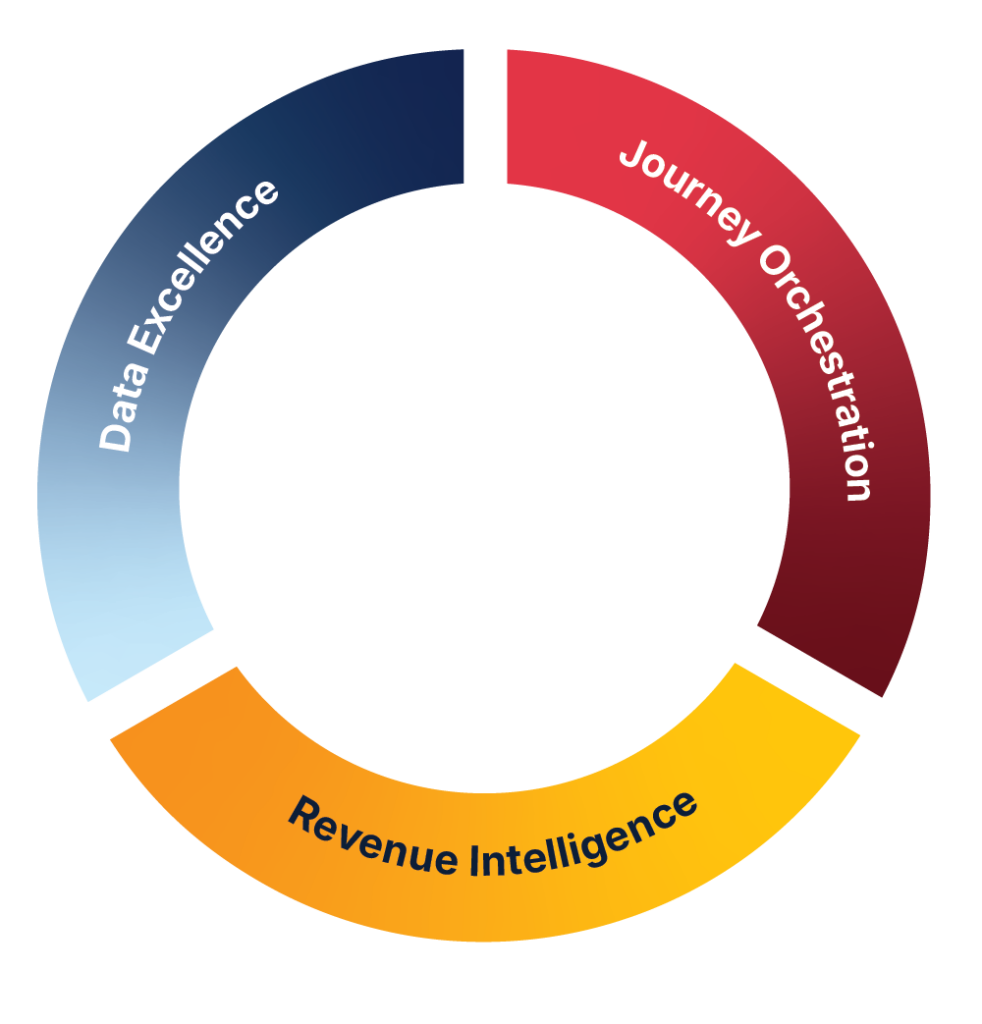



















Generative and agentic AI in marketing automation promises rapid campaign assembly and effortless operations. But when you hand over program creation to an AI assistant without clear guardrails, automation doesn’t just speed up execution – it accelerates chaos.
With the rollout of Coworker for Marketo Engage (Adobe’s native generative AI assistant), marketing operations teams can now clone programs, assemble multi-touch campaign frameworks, query lead activity, and run program validations directly in natural language.
However, before you prompt Coworker to build out your next webinar or email nurture, there is a foundational step you cannot skip: Organizational Rules.
Here is a practical, step-by-step operational guide to unlocking Coworker, locating the rules engine, and configuring your instance’s guardrails so your AI adheres to your governance standards from day one.
Prerequisites: Unlocking Coworker in Your Instance
If you open Marketo Engage today and cannot find the Coworker tile on your My Marketo home screen, it is not broken – it is simply gated by commercial and contractual requirements.
Step 1: Sign the Gen-AI Addendum
To activate Coworker, your organization must agree to Adobe’s Core Gen-AI Terms and Supplemental Terms.
- Reach out to your Adobe Account Manager / Customer Success Manager (CSM) or raise an Adobe Support ticket to initiate the paperwork.
- Not sure who your Adobe CSM is or hitting a wall with permissions? Contact Andy Mullings and the team at JTF, and we can help point you to the right contacts.
Step 2: Configure Roles & Permissions
Once enabled on your subscription, access is governed at the role level in Admin > Users & Roles:
- By default, the permission is enabled for Admin and Adobe Product Admin roles.
- For campaign operations team members, assign them to the dedicated Coworker for Marketo Engage User role or edit an existing custom role to check Access Coworker for Marketo Engage.
Where to Find Organizational Rules
Once permissions are set, navigating to the rules setup can be surprisingly easy to miss.
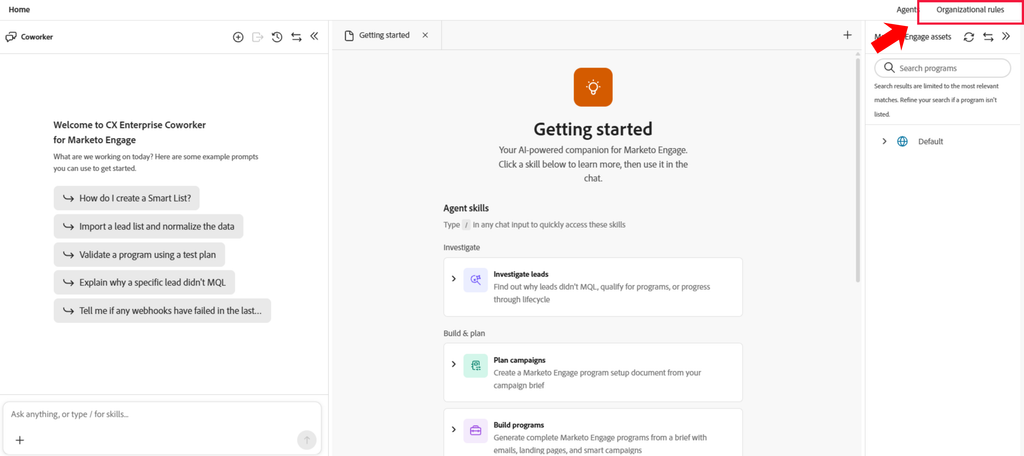
- From the My Marketo dashboard, click the Coworker for Marketo Engage tile.
- Click the Gear icon (Settings).
- Look toward the top right: locate the Organizational Rules button. (Note: It has subtle styling and doesn’t look like a standard call-to-action button, but clicking it opens the rule editor).
[My Marketo] ➔ [Coworker for Marketo Engage] ➔ [Settings / Gear Icon] ➔ [Organizational Rules (Top Right)]
Rules are formatted using Markdown with YAML frontmatter. You can configure Global Rules that apply across your entire instance, as well as specific Workspace Rules if regional teams or business units require different naming or compliance logic.
What Needs to Go Into Your Organizational Rules?
Organizational Rules are essentially the prompt engineering and governance framework for Coworker. Without them, Coworker will use generic naming patterns, omit mandatory tokens, or default to arbitrary send settings.
When configuring your rules, focus on six primary governance pillars:
| Pillar | What to Define | Why It Matters |
| Naming Conventions | Patterns, abbreviations, and accepted code options for Programs, Smart Campaigns, Emails, and Lists. | Prevents broken reporting feeds, attribution errors, and clutter in the asset tree. |
| Program Structures & Folders | Default local folder hierarchies inside cloned programs (e.g., 01 Assets, 02 Smart Campaigns, 03 Reports). | Keeps cloned program architecture identical across all operators. |
| Standard Program Tokens | Mandatory local tokens required across campaign types (e.g., {{my.EventDate}}, {{my.WebinarURL}}, {{my.SpeakerName}}). | Eliminates human error during cloning and ensures placeholder copy populates dynamically. |
| Sender & Compliance Standards | Approved From Names, From Email Addresses, and Reply-To addresses. Mandatory inclusion of unsubscribe links and CTA rules. | Protects sender reputation, ensures deliverability, and maintains legal email compliance. |
| Recommended Elements & QA | Enforced Alt Text on all imagery, plain-text email versions, and structured UTM parameters on tracked links. | Ensures email accessibility and clean analytics tracking in web reporting platforms. |
| Audience Exclusion Filters | Standard suppression rules (e.g., unsubscribes, competitors, internal test domains, hard bounces). | Prevents embarrassing campaign sends to competitors or unmarketable leads. |
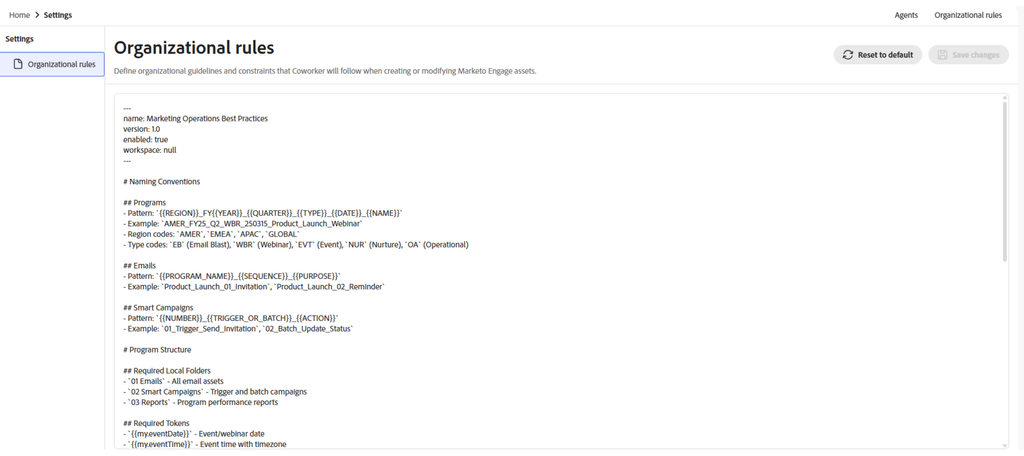
Pro-Tip: If your rule set becomes bloated or corrupted during testing, use the Reset to Default option in the settings editor to return to Adobe’s baseline syntax before reapplying your custom code.
How to Accelerate Your Setup
Writing YAML frontmatter and Markdown definitions for every asset type from scratch can be daunting.
A faster, practical workflow:
- Export or copy Adobe’s default template directly from the Organizational Rules panel.
- Feed your existing documentation into an LLM: Take screenshots or documentation of your current naming conventions, folder taxonomy, and program templates, and prompt the LLM to structure your rules into the required YAML/Markdown schema.
- Validate before committing: Paste the output back into your Sandbox instance and test Coworker against a sample program clone before rolling it out to production.
What Coworker Can (and Can’t) Do Once Activated
Once your Organizational Rules are locked in, what does day-to-day execution look like?
- Clone & Build Programs: Coworker guides you through selecting a base template from the tree and choosing a destination folder. It handles the duplication in the background, allowing you to context-shift to other tasks rather than watching a loading wheel.
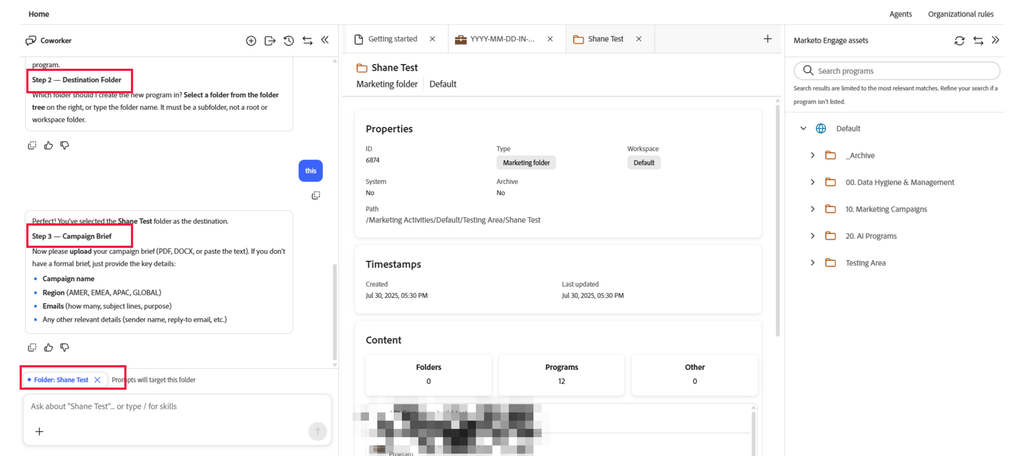
- Validate Programs (Automated QA): Coworker evaluates your created programs against your Organizational Rules – checking for missing tokens, broken naming formats, or absent compliance links before launch.
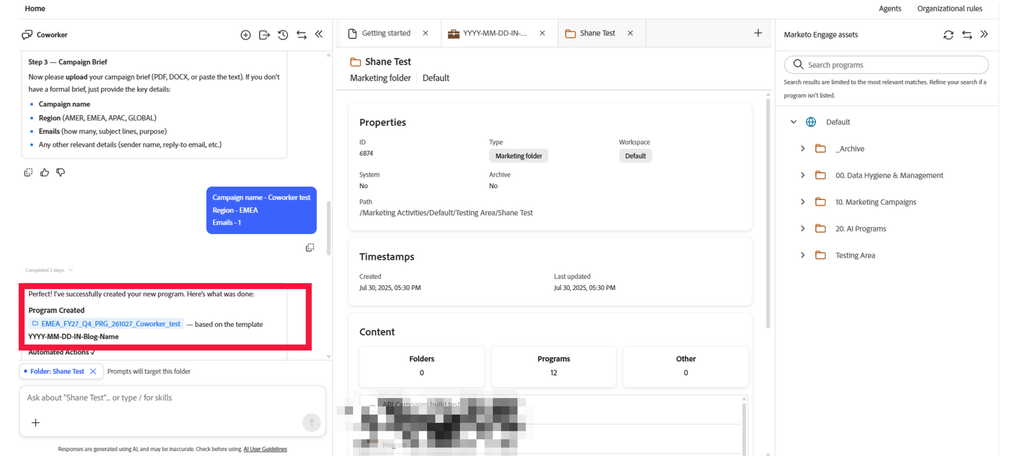
- Investigate Leads: You can query specific records by email address to pull activity histories, data values, and recommended next best actions directly within the conversation window.
Where You Still Need Human Oversight
Coworker is a powerful assistant, not an autonomous MOps replacement. It duplicates assets, creates placeholder smart campaigns, and aligns naming. However:
- Smart Campaign filters and flow steps require manual verification. Always inspect smart list logic, triggers, and wait steps before activation.
- Session history does not persist indefinitely. If you navigate away during an active Coworker workflow, prompt context can reset.
The Strategic Perspective: Tech vs. Process
Deploying agentic AI inside Marketo Engage is not simply a matter of switching on a toggle. AI amplifies the operational environment it inherits. If your naming conventions are unstandardized, your folder hierarchies messy, and your data hygiene undefined, an AI assistant will automate that disorder at ten times the speed.
Getting real value out of Coworker requires treating your configuration as an ongoing operational strategy – aligning your core data infrastructure, governance, and campaign architecture.
Take the next step
Ready to operationalize AI without compromising governance?
Don’t let unguided AI automation create cluttered program trees, broken token logic, and non-compliant send settings. JTF partners with enterprise marketing teams across dedicated retainers to audit campaign taxonomies, configure foolproof Organizational Rules, and embed AI workflows that protect your data integrity while driving pipeline.
Connect with Andy.
Frequently Asked Questions
Access requires two steps: your organzsation must first sign Adobe’s Gen-AI Addendum (handled through your Adobe Account Manager or Customer Success Manager), and an administrator must assign your user profile the Access Coworker for Marketo Engage permission under Admin > Users & Roles.
Yes, but it is not recommended for production environments. Without Organizational Rules, Coworker will use generic naming patterns, omit required tokens, and ignore your team’s custom folder hierarchies, which quickly leads to database clutter and broken reporting.
Organizational Rules use Markdown with YAML frontmatter. This format allows you to specify parameters such as approved program abbreviations, standard folder paths, mandatory local tokens, and default sender profiles in structured text.
Yes. You can define Global Rules that apply across your entire Marketo instance, as well as specific Workspace Rules if regional teams (such as EMEA, AMER, or APAC) have distinct naming conventions, compliance requirements, or default sender addresses.
The Organizational Rules editor includes a built-in Reset to Default option. Clicking this restores Adobe’s baseline template and syntax, allowing you to re-apply your custom rules cleanly without starting completely from scratch.